

Canvas Templates from Digital Learning
September 30, 2026 / Digital Learning / Tags: Canvas, Digital Learning
The Digital Learning Department has created Canvas course templates to help you build effective online, face-to-face, and hybrid courses. These templates include best-practice design elements that support student success, along with resources to help you get started in Canvas. Our template options are fully accessible and aligned with Universal Design for Learning (UDL) and WCAG 2.2 Web Accessibility Standards. Both versions can be easily personalized to fit your specific instructional needs.
Template Features
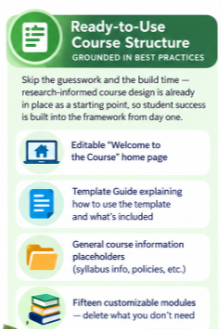
Ready-to-Use Course Structure - Grounded in Best Practices
Skip the guesswork and the build time - research-informed course design is already
in place as a starting point, so student success is built into the framework from
day one.
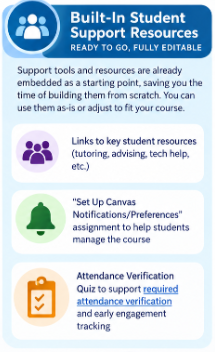
Built-In Student Support Resources - Ready to Go, Fully Editable
Support tools and resources are already embedded as a starting point, saving you the
time of building them from scratch. You can use them as-is or adjust to fit your course.
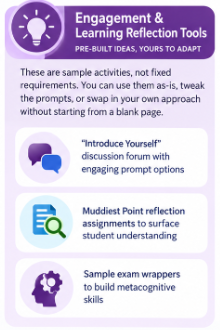
Engagement & Learning Reflection Tools - Pre-Built Ideas, Yours to Adapt
These are sample activities, not fixed requirements. You can use them as-is, tweak
the prompts, or swap in your own approach without starting from a blank page.

Template Options
Canvas Online Course Template
This template is best used by faculty for asynchronous and synchronous online courses. See the brief video overview of this template below:

Canvas Online Course Template Video Overview
Canvas Technology Enhanced Course Template
This template can be used by faculty who teach face-to-face or hybrid courses. Watch this brief video overview of our technology enhanced course template:
Canvas Technology Enhanced Template Video Overview
Where To Find Information About the Canvas Templates
Information about the Canvas Templates can be found on the Digital Learning website.
Canvas Course Templates Location Video Overview
Both templates can be found through Canvas Commons. Please note that to access Canvas Commons you must be logged into Canvas. Refer to the How do I Import and View a Commons Resource for further support.
If you have any questions, contact your Instructional Designer.


