
Canvas Quicktip 18
August 06, 2026 / Digital Learning / Tags: Digital Learning, Quicktip, Canvas, Canvas Quicktip
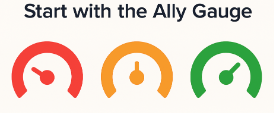
Ally’s colored gauge next to your Canvas files shows accessibility at a glance, so you can quickly spot red and orange files that need the most attention.
How to Use It
- Open your Canvas course and look for the Ally gauge icon next to files or content.
- Start with a red or orange gauge and click the icon to open Ally’s feedback for that item.
- Review the issue and suggested fix (for example, adding headings or image alt text).
- If the item is a file, download it, make the suggested fixes, and reupload the updated version to Canvas. The Ally score will update automatically.
Please reach out to Digital Learning with any questions.


