

Headings Toward Accessibility: Using Proper Heading Styles
November 24, 2026 / Digital Learning / Tags: Digital Learning, Access Granted, Accessibility
Have you ever opened a course document, looked through several pages of information, and struggled to find what you needed? While some students can quickly scan a document and locate the right section, a student using a screen reader may have to listen to that entire document if it lacks properly formatted headings. What may seem like a simple formatting choice can become a significant barrier to accessing information.
Understanding the Issue & Impact
Headings are important for breaking content down and reducing cognitive load, as they create clear, meaningful structure by organizing information into sections. For example, a course document might use Heading 1 for the main title, Heading 2 for major sections, and Heading 3 for topics within those sections.
Accessible headings involve more than simply making text larger, bold, or a different color. They require using built-in heading styles within content creation software such as Microsoft Word or the Canvas Rich Content Editor (RTE).
These styles communicate structure to assistive technologies like screen readers. For students who are blind or have low vision, properly structured headings create essential navigation within documents, allowing screen reader users to more efficiently locate information. Students with cognitive disabilities or learning disabilities may also benefit from clearly organized content that makes information easier to understand. Moreover, all students can benefit from predictable organization because consistent headings make content more readable and easier to comprehend. Accessible headings support clarity and help students spend more time engaging with course content rather than searching for information.
Example
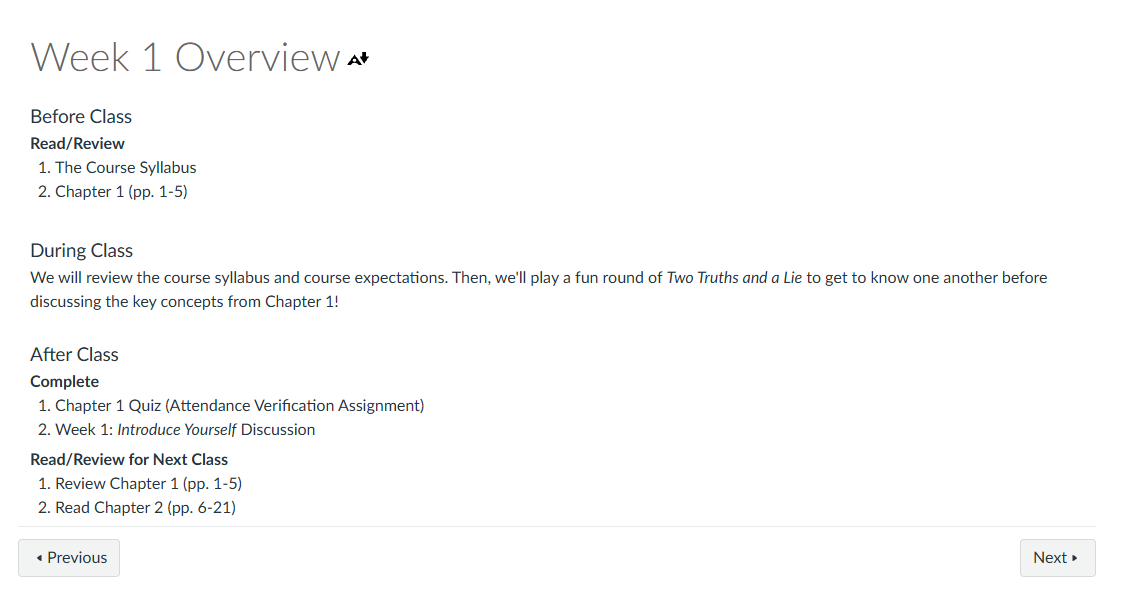
Consider an instructor who posts this Week 1 Overview to their Canvas course. The instructor created headings using visual formatting, with increased font size for the Before, During, and After Class headings, and bolded text to distinguish the action-oriented headings. While these sections of text look like headings, they won’t be communicated as headings to assistive technologies.
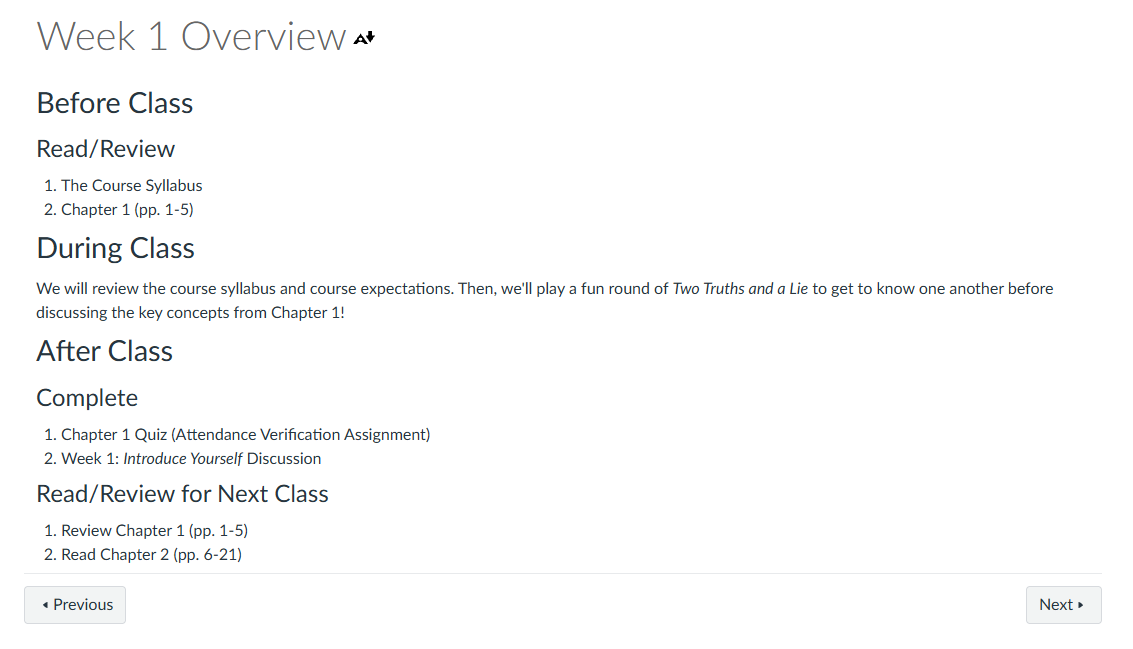
The instructor can improve the page structure with Heading Styles. The Before, During, and After Class headings are all marked as Heading 2 and the action-oriented headings are all marked as Heading 3. These headings have more consistent sizing and spacing and will now be recognized as headings by assistive technologies.
Using Heading Styles is also more efficient. This instructor would’ve had to manually bold the text and adjust the font size each time they wanted to create a heading. Using a Heading Style automatically adjusts text to appear and function as a heading.
Put It In Practice
Instructors can create accessible headings using several practical strategies during content creation:
- Use built-in Heading Styles. Canvas’s Rich Content Editor (RTE) and Microsoft Suite products have built-in heading styles. You can apply them by selecting text and applying a heading style.
- Organize headings sequentially. Start with Heading 1 for the document’s main title, followed by Heading 2 for major sections, and Heading 3 for subsections. Avoid skipping heading levels, such as moving from Heading 1 to Heading 3, as this can disrupt the navigation for assistive technologies. Canvas’s RTE Heading Styles begin at Heading 2, as Heading 1 is reserved for the title of the page.
- Use descriptive headings. Make sure your headings are clear, concise, and accurately define the scope of the content they contain.
Moving Forward Accessibly
Making your materials more accessible should start from the top. Accessible headings are a simple but powerful way to support inclusive teaching and learning. They help students with disabilities navigate course materials independently while making information clearer and more readable for the entire class.
Want to Dig Deeper?
- Use Microsoft’s guide to add headings in a Word document.
- Learn more about the related WCAG Guidelines, 1.3.1 Info and Relationships and 2.4.6 Headings and Labels, from AAArdvark’s WCAG in Plain English.
Need support making your course accessible? Stop by Access Granted: Open Door Hours!
Share Post


