

Using Microsoft Copilot's Teach Tool to Draft and Revise Course Materials
September 01, 2026 / Digital Learning / Tag: elevate with AI
Designing effective course materials takes time, whether you are creating something new, updating materials, or looking for new ideas. Microsoft Copilot’s Teach tool offers another option. Faculty can use it to draft and revise teaching materials that support alignment, accessibility, and more intentional student learning experiences.
What Is It?
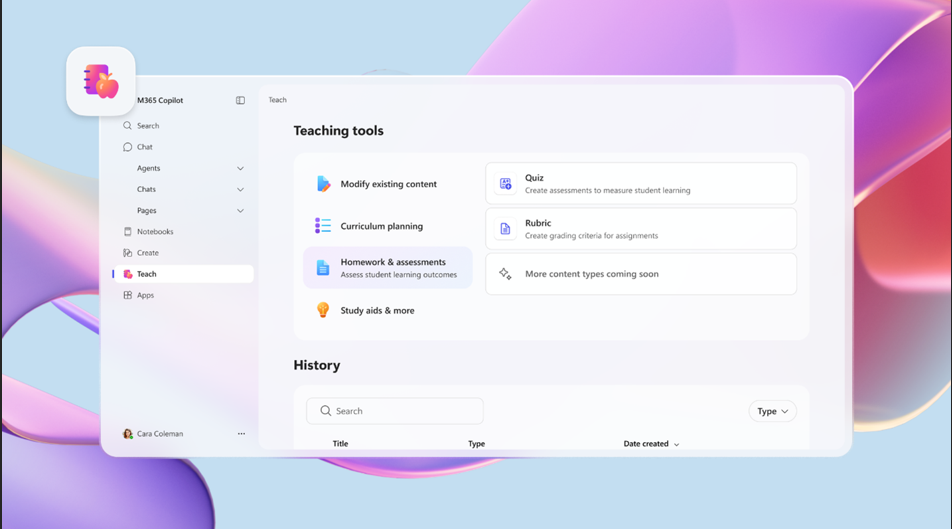
Teach is a feature in the Microsoft Copilot 365 app that helps educators create and
revise teaching materials. Faculty can use it to draft lesson plans, quizzes, rubrics,
flashcards, and other instructional resources. It can also help adjust materials by
reading level, length, language, difficulty, or alignment with standards.
The instructor still makes the instructional decisions. Teach can provide ideas and
first drafts, but the faculty decides what is accurate, appropriate, and useful for
their students.
How Can Faculty Use It?
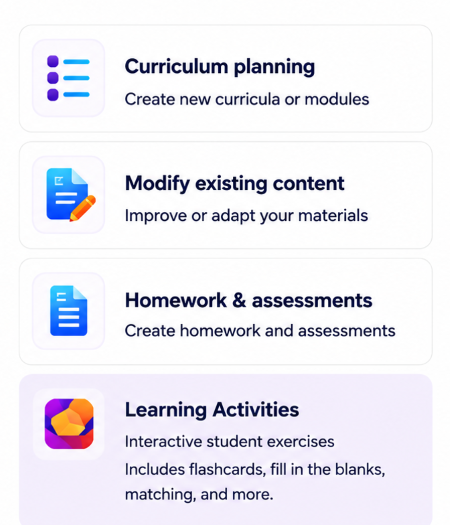
Faculty might start with one small task, such as revising an assignment prompt, creating
practice questions, or drafting a rubric.
Teach works best when paired with a clear learning goal. For example:
Course Learning Outcome: Students will be able to identify and evaluate ethical concerns in workplace communication
scenarios.
Using that outcome, an instructor could ask Teach to create:
Six scenario-based quiz questions that help students practice identifying ethical
concerns in workplace communication.
This helps keep the focus on what students should be able to do, not just what content
should be covered.
Faculty might use Teach for:
● Quiz or Knowledge check
Example: Ask Teach to create a short set of scenario-based quiz questions connected
to a learning outcome. Faculty can revise the questions for accuracy, adjust the level
of difficulty, and add feedback for common misconceptions.
● Rubric drafts
Example: Ask Teach to draft a rubric for a group presentation, including criteria
such as analysis, use of evidence, organization, presentation clarity, and teamwork.
● Material Adjustments
Example: Ask Teach to shorten a complex assignment description, adjust the reading
level, or create a checklist version of the directions. This can help students better
understand the task before they begin.
● Lesson plan drafts
Example: Ask Teach to draft a lesson outline for a class session connected to a specific
learning outcome. Faculty can adjust the timing, activities, and examples to fit their
course.
The goal is not to replace instructor expertise. Instead, Teach provides a starting
point that faculty can review, revise, and tailor to ensure the content is accurate,
aligned with course outcomes, and appropriate for their students.
Getting Started
All faculty have access to Copilot through their FGCU Microsoft 365 account. To explore
Teach, open the Microsoft 365 Copilot app and search for the “Teach” tool. Microsoft’s
guide linked below provides additional steps.
Before sharing AI-generated materials with students, review them for accuracy, alignment
with your learning outcomes, appropriate difficulty, and clarity. When appropriate,
consider adding a brief transparency note, such as:
“This material was drafted with support from Microsoft Copilot and reviewed by the
instructor before being shared with the class.”
Guide: Teach in the Microsoft 365 Copilot App
---------------------------------------------------------------------------------------------------------------
This post was created with support from generative AI tools to help draft and organize
content. All information has been reviewed, edited, and tailored by the author to
ensure accuracy and relevance for FGCU faculty. This approach reflects our commitment
to transparent, intentional use of AI i
Tag Cloud
Share Post


